Google Forms QR Code Generator
Turn your Google Form into a scannable QR code so people can open and fill it from any flyer, poster, or offline spot. Customize the design to match your brand.

Google Forms QR Code: QR Code Generator for Google Forms
Collect information seamlessly by sharing Google Forms with your consumers, students, employees, and more


What Is a Google Forms QR Code?
A Google Forms QR code helps you share a Google Form with a large audience across online and offline channels. People can scan the QR code to open the form on their phones and submit a response.
You can convert any Google Form link into a QR code in a few minutes and use it to collect customer feedback, registrations, survey responses, employee input, student responses, and other information.
How to Create a Google Forms QR Code
Creating a QR code for a Google Form takes only a few steps:
Create Your Form
Create and publish your form in Google Forms.
Copy the Link
Copy the responder link for your published form.
Create Your QR Code
Paste the form link into QRCodeChimp, then customize the design with colors, shapes, and your logo.
Save and Download
Save the QR code, test it on multiple phones, and download it for use.
For detailed instructions, see the step-by-step guide in the Frequently Asked Questions below.
How Does a Google Forms QR Code Work?
A Google Form QR code allows users to scan the code and fill out a form. Here's how a QR code for Google Form works:


Benefits of a Google Forms QR Code
A Google Forms QR code makes it easier to share your form and collect responses from online and offline audiences.
- Share Google Forms with a large audience.
- Distribute forms through newspapers, billboards, magazines, product packaging, posters, and other offline channels.
- Let people open and complete the form directly from their phones.
- Avoid asking people to manually type a long form URL.
- Connect printed materials with a digital form.
- Track scans when you use a dynamic QR code.

Create and Manage Google Forms QR Codes with QRCodeChimp
QRCodeChimp’s Google Forms QR Code Generator allows you to create custom-designed and trackable QR codes for your Google Forms. Here is why you should create a QR code for a Google Form with QRCodeChimp.


Who Should Use a Google Forms QR Code?
Google Forms QR codes have several applications across businesses, educational institutions, workplaces, and marketing campaigns.


How to Get More Scans on Your Google Forms QR Code
If you are conducting a survey or distributing a form to a large audience, the QR code should be noticeable, easy to scan, and supported by clear instructions. Here are some ways to improve its visibility and usability.
Ensure seamless scanning
Be sure to print your Google Forms QR code of proper size and clarity so that people can scan it easily. The recommended minimum size of a QR code is 0.8 x 0.8 inches.

Make your Google Forms QR Code compelling
Your Google Forms QR code will get more scans if it looks visually appealing. Use shapes, colors, and the 3D effect to give your Google Forms QR codes a compelling look.Ensure consistent branding
Add a logo to your Google Forms QR code to align it with your brand. Also, you can use white labeling to replace default short URLs with custom scan URLs.

Add a CTA to your Google Forms QR Code
Including a call to action (CTA) with your Google Forms QR code can increase its scan rate. Use stickers with CTAs to make your QR codes actionable.Make your QR code dynamic
Create a dynamic Google Forms QR code so that you can change the contents linked to it without reprinting the QR code. This way, you can distribute the same code to more people and get more scans.
Best Practices for Creating Google Forms QR Codes
Follow these practices to keep your Google Forms QR code accessible, functional, and easy to use.
Check the form's access settings
Publish the Google Form and verify who can respond before creating or distributing the QR code. If the form is intended for a general audience, make sure external users can access it. If it contains internal or restricted information, limit access to the intended accounts, groups, or audiences.Open the copied responder link in a private browser window to confirm that the access settings work as expected.
Placement
Place the QR code where the target audience can easily notice and reach it, and choose its size based on how far away people will be when scanning it. On signs, pamphlets, posters, or product packaging, avoid folds, curved edges, reflective surfaces, and areas where the QR code may be covered or damaged.Avoid excessive customization
Because QR codes include built-in error correction features, they can still be read even if some code is torn or hidden. The capacity for error correction is limited, though. Do not cover important parts of the QR code or use cluttered patterns and low-contrast color combinations. Keep the code clear, maintain strong contrast with the background, and leave the empty margin around it intact.Test before publishing
Test the QR code before finalizing your campaign. Scan it using multiple iOS and Android phones. For a printed campaign, test a physical sample at the intended size, material, and placement. Complete and submit the form during testing to verify the entire user journey.Use a dynamic QR code when needed
Choose a dynamic QR code when you want scan analytics or may need to replace the destination URL later without reprinting. A static QR code can be suitable when the responder link will remain unchanged.Google Forms QR Code vs. Form QR Code
A Google Forms QR Code and QRCodeChimp’s Form QR Code both help you collect information, but they support different workflows.
Google Forms QR Code
Use a Google Forms QR code when you have already created a form in Google Forms and want to share it through a customized or trackable QR code.
The form and its responses remain within Google Forms.
Form QR Code
Use QRCodeChimp’s Form QR Code when you want to create the form and QR code together within QRCodeChimp.
You can customize the hosted form experience, add your branding, configure form fields, and manage submitted responses through QRCodeChimp.
Create and share a fully customizable Form QR Code without relying on an external form platform.
Frequently Asked Questions
- How to create a Google Forms QR Code?
- How to get notifications for new form submissions?
- Why should I create a Google Forms QR code?
- Should I create a static or dynamic Google Forms QR code?
- Can I get form submissions from offline channels?
- Is it free to create a Google Forms QR code?
- Do people need an app to scan a Google Forms QR code?
- Can I edit my Google Form after creating the QR code?
- Does a Google Forms QR code expire?
- Do respondents need a Google account?
- Can I create Google Forms QR codes in bulk?
Frequently Asked Questions
How to create a Google Forms QR Code?
Follow these steps to create a QR code for a Google Form:
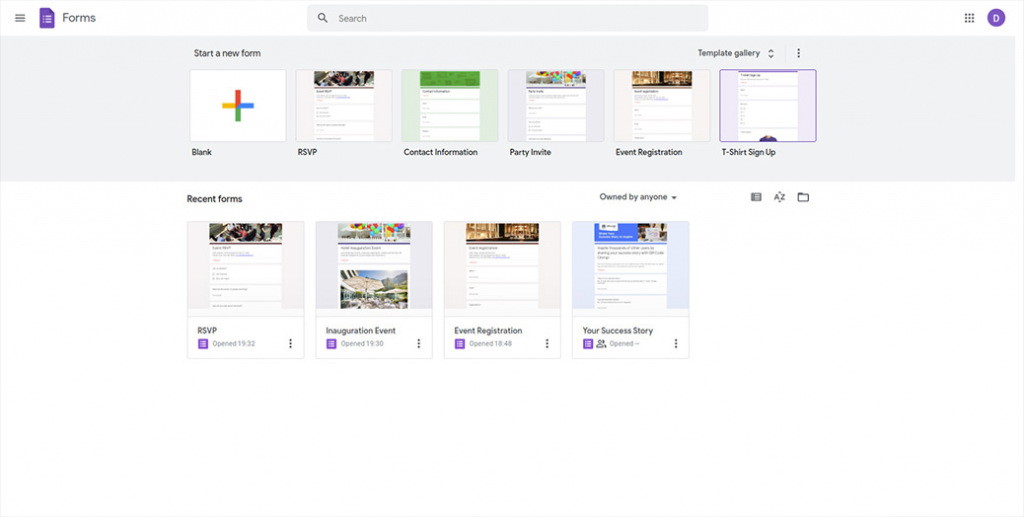
Step 2: Create Form and Click Send
Create your form and click on 'Send.'
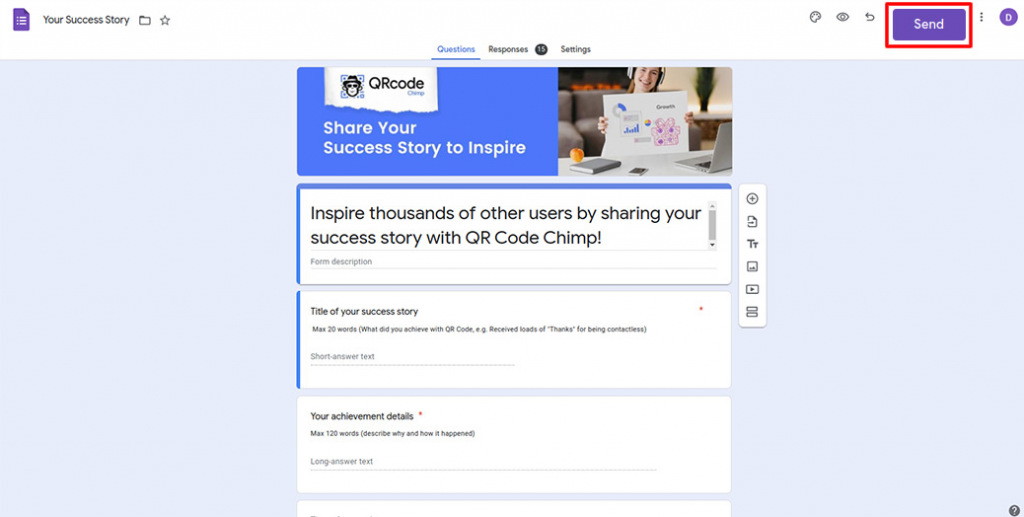
Step 3: Copy Link
Click on the 'link' icon and then click on 'Copy.'
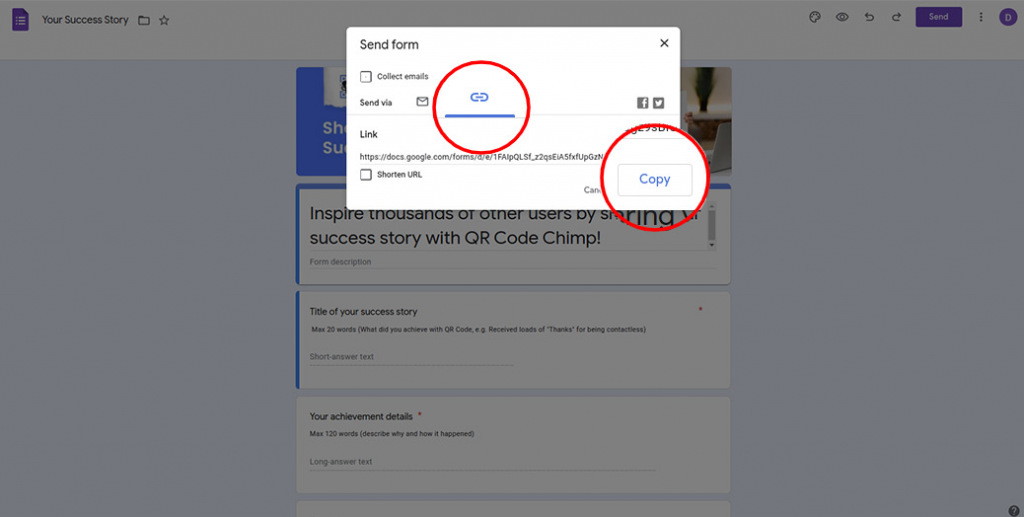
Step 4: Paste the Copied Link
Paste the copied link in the 'Google Form URL' field of QR Code Generator for Google Forms.
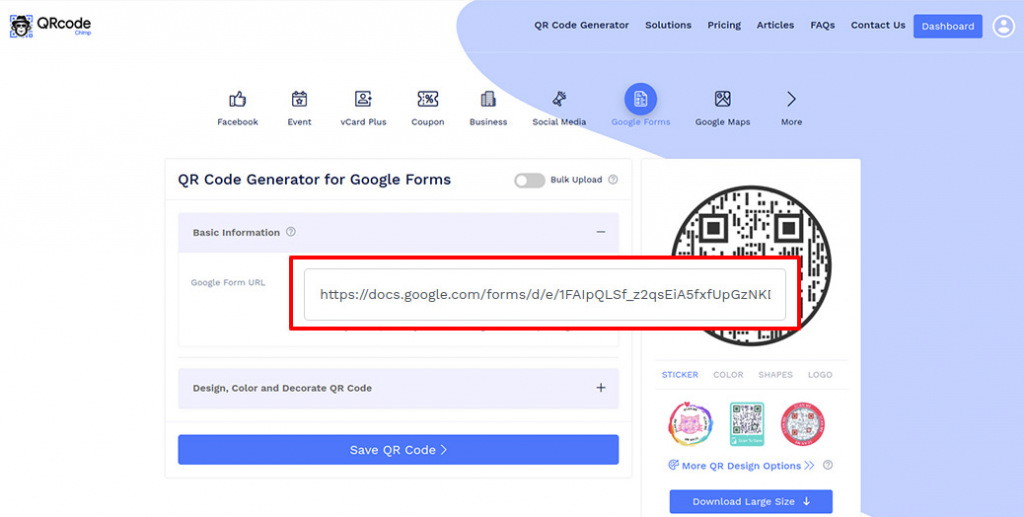
Step 5: Design Your QR Code
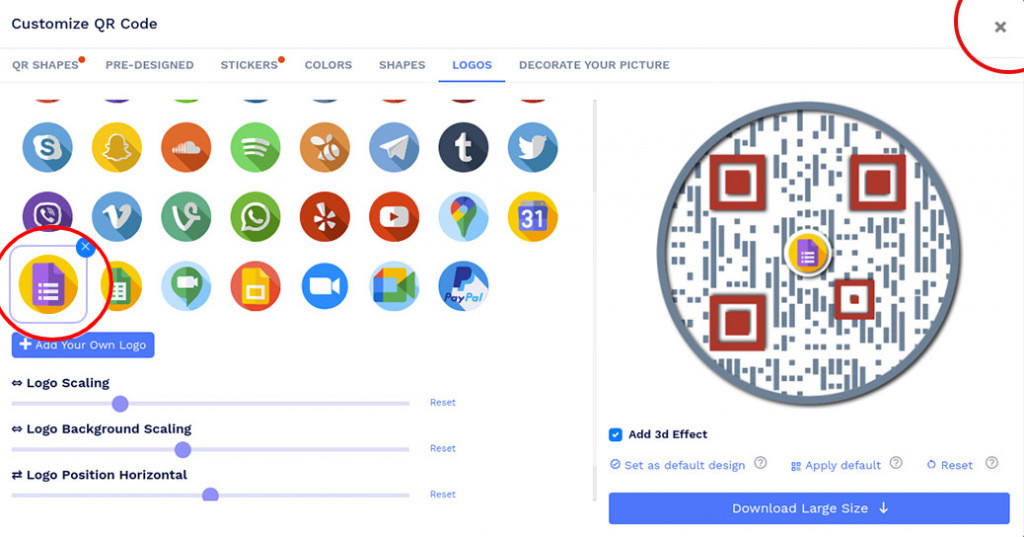
Click on 'Design Color and Decorate QR Code' to customize your QR Code design (ex: adding color, shape, Google Form logo).
Note: Click on the 'x' icon of the 'Customize QR Code' popup to save changes.
Step 6: Save and Download
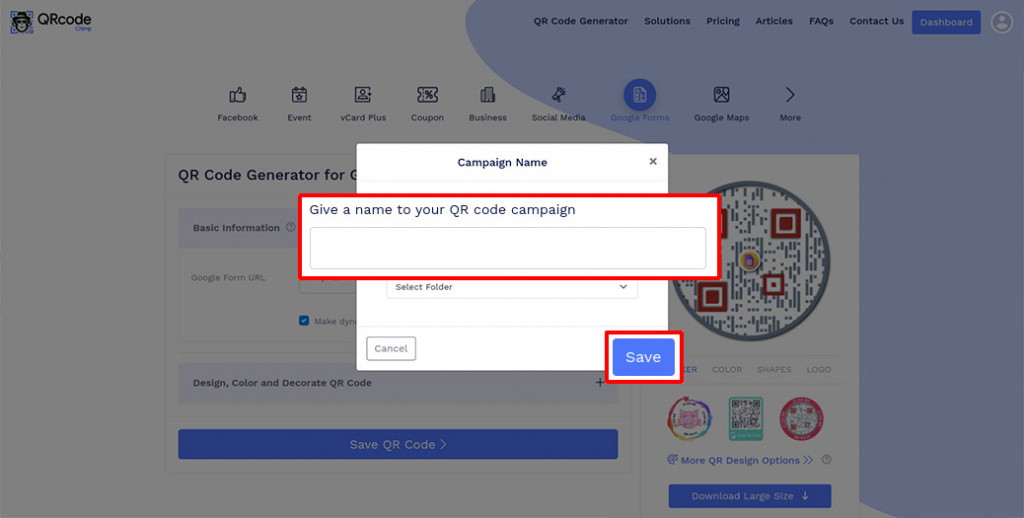
Save the QR Code by clicking on the 'Save QR Code' button, entering the QR name, and then clicking on 'Save.'
Note: Make sure to scan your QR Code from different devices (iOS and Android) before printing for production.
How to get notifications for new form submissions?
Follow these steps to get an email notification for a new submission. Go to Google Forms and open the desired form. Go to 'Responses,’ click on the options icon (3 dots)' and enable 'Get email notifications for new responses.' Now, you'll get an email when a new user fills out the form.
Why should I create a Google Forms QR code?
A Google Forms QR code lets you share a form with a large audience and get more submissions. Users can scan the code to open the form and fill it out. You can share a Google Forms QR code on various channels to reach more people and encourage them to fill out your form.
Should I create a static or dynamic Google Forms QR code?
Create a dynamic Google Forms QR code when you need scan analytics or may want to replace the destination URL without reprinting the code.
A static QR code can work when the responder link will remain unchanged and you do not need scan analytics.
Can I get form submissions from offline channels?
Yes. You can share your Google Forms QR code through offline channels to reach people using printed materials.
Download the QR code and place it on newspapers, magazines, brochures, posters, packaging, signs, and other materials.
People can scan the code from their phones to open and complete the form.
Is it free to create a Google Forms QR code?
Yes. You can use QRCodeChimp to create a Google Forms QR code for free.
The number of dynamic QR codes, scans, analytics history, and advanced management features available depends on your plan.
Do people need an app to scan a Google Forms QR code?
No. On most modern iOS and Android phones, people can scan the QR code using the built-in camera and open the linked Google Form without installing a separate app.
Can I edit my Google Form after creating the QR code?
Yes. You can edit questions, answer options, descriptions, and other content within the same Google Form.
The existing QR code should continue to work as long as the form remains published, accessible, and its responder link does not change.
Does a Google Forms QR code expire?
A Google Forms QR code has no preset expiry. It works as long as the linked form remains published and accessible. Dynamic codes also require an active QRCodeChimp account and pause if the scan limit is reached, resuming in the next cycle.
Do respondents need a Google account?
It depends on the Google Form’s settings. Respondents may need to sign in when the form is restricted to specific users or when settings such as “Limit to 1 response” are enabled.
Review the responder access settings before distributing the QR code.
Can I create Google Forms QR codes in bulk?
Yes. QRCodeChimp’s bulk upload feature allows you to create multiple Google Forms QR codes at once. This is useful when different teams, locations, classes, events, or campaigns use separate Google Forms.
Hear What Our Customers Have to Say!

Creating QR codes was very easy!
Hello, I'm Marion, and I'm preparing an online congress. I have developed 10 digital guides; these guides are presented in my book and can be accessed directly via a QR code. Creating QR codes was very easy, and it worked well, generating 15+ codes quickly and easily. Thank you, and we look forward to coming back to the platform for our next project.
We feel very happy to provide a rating of 10 out of 10!
We are very much satisfied and really appreciate the QR code service provided by QRCodeChimp.com Customization features like different styles, colors, and adding a logo make the QR codes attractive. Also, PDF generation is up-to-date. QRCodeChimp.com is very useful for our startup business.
Variety of shapes is fantastic!
The QR code is great, having the ability to include a logo in the middle. I used QRCodeChimp to create a code for our club event registration because I was offering entry to the staff of a sponsor, so I wanted a great way to capture their interest. We were fortunate that our club's mascot, a turtle, is included in the range of shapes that QRCodeChimp has as standard.
My Go-to solution!
The best, since I started using it, is my go-to when I need a QR Code. I can easily download QR codes in PDF and PNG formats. I rate QRCodeChimp 9/10.
We had 100% participation!
I created QR codes of different shapes to collect feedback at our church. Putting the survey online was the best option. The shapes offered by QRCodeChimp were just what I was looking for, and I was able to print labels with two different shapes. Thanks to the unique and amazing shapes, we had 100% participation! I especially loved the instructions and guidance offered on your website for creating codes.
Your platform is too good!
Thank you so much for your service. I am a digital marketer, and I have used your platform to create google review codes for my client. We are witnessing a phenomenal surge in reviews due to the ease of process established due to your QR code mechanism.